
Author

Is your home WiFi constantly buffering, making remote work and streaming a chore? You’re not alone. The good news is that you don’t need a costly service upgrade for a significant improvement. This guide outlines five practical and affordable ways to boost home wifi speed, using expert tips and simple adjustments you can make today.
Know 5 Affordable Ways to Boost Home WiFi Speed in 2025
In an era of hybrid work, 4K streaming, and cloud gaming, a sluggish WiFi connection is more than an annoyance—it’s a roadblock to productivity and entertainment. While upgrading your internet plan is one solution, it’s often an unnecessary expense. According to a recent study by Ookla, network congestion and local hardware issues are among the top culprits for poor home WiFi performance, not the bandwidth from your ISP. This article provides a fresh, actionable guide with five affordable ways to boost home wifi speed, leveraging expertise from industry leaders like the Wi-Fi Alliance and FCC guidelines on home networking.
1. Strategically Re-position Your Router
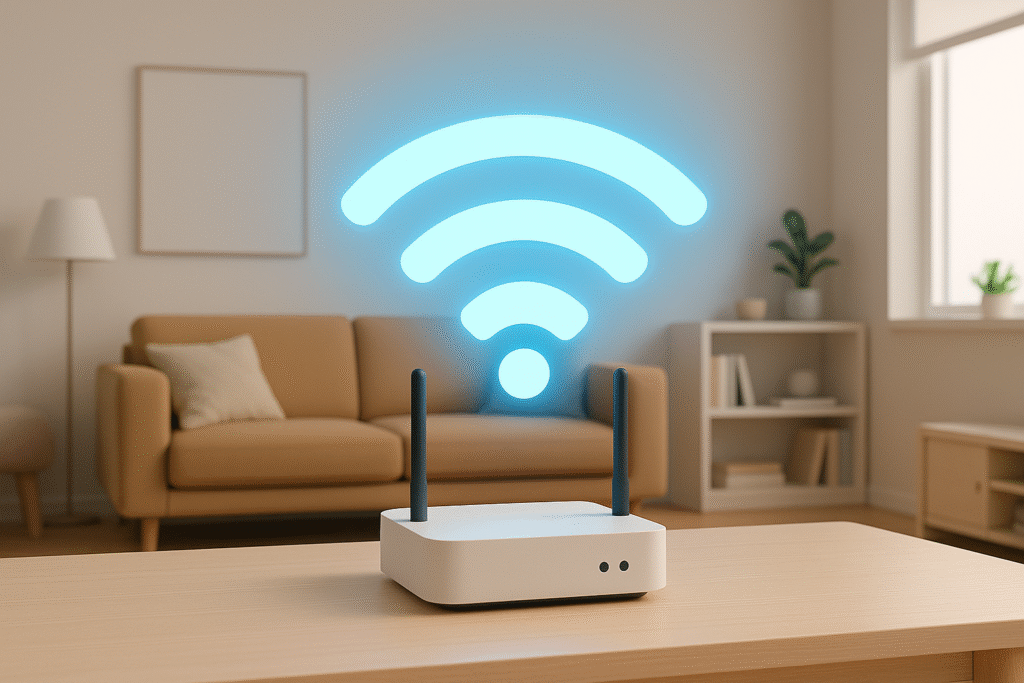
The physical placement of your router is the single most overlooked factor in wireless performance. “A router hidden in a corner or a cabinet is like a speaker trying to fill a concert hall from backstage,” explains a networking expert from TP-Link. For optimal coverage:
- Centralize It: Place your router as close to the center of your home as possible to distribute the signal evenly.
- Elevate It: Keep it off the floor—on a shelf or desk—to help the signal travel farther.
- Avoid Obstacles: Keep it away from thick walls, metal surfaces, and large appliances like microwaves and refrigerators, which can severely degrade signal strength.
2. Leverage Wired Connections for Critical Devices
While WiFi offers convenience, a wired Ethernet connection provides unparalleled stability and speed. For devices that demand the most bandwidth and lowest latency—such as a work computer, gaming console, or 4K smart TV—a direct connection is the most reliable of the affordable ways to boost home wifi speed. This not only gives those devices a premium connection but also reduces congestion on your wireless network, freeing up bandwidth for your phones and tablets.
3. Optimize Your WiFi Band and Channel
Modern routers are dual-band, broadcasting separate 2.4 GHz and 5 GHz networks. Understanding the difference is key to optimization, a point emphasized by the Wi-Fi Alliance:
- 2.4 GHz Band: Offers longer range but is slower and more prone to interference from neighboring networks and Bluetooth devices.
- 5 GHz Band: Provides faster speeds and less interference but has a slightly shorter range.
Manually connecting devices to the 5 GHz band when they are close to the router can yield immediate speed gains. Furthermore, using your router’s admin settings or a free app like WiFi Analyzer to switch to a less congested wireless channel can dramatically reduce interference.
4. Consider a Hardware Upgrade to Wi-Fi 6
If your router is more than four years old, it may be struggling with modern demands. Upgrading to a Wi-Fi 6 (802.11ax) router is a powerful, forward-looking investment. As per CNET’s 2024 tech reviews, Wi-Fi 6 routers are not just about faster top speeds; they are more efficient at handling multiple devices simultaneously, a common issue in today’s smart homes. For larger homes, a mesh Wi-Fi system can eliminate dead zones by using multiple satellite units to blanket your entire space with a strong, consistent signal.
5. Refine Router Settings and Manage Connected Devices
Your router’s software holds powerful tools for optimization. Two critical steps are:
- Enable Quality of Service (QoS): This feature, found in most modern routers, allows you to prioritize traffic. You can tell your router to give precedence to video conferencing (Zoom, Teams) or online gaming, ensuring these activities remain smooth even when others are streaming or downloading.
- Update Firmware: Router manufacturers regularly release firmware updates that patch security vulnerabilities and improve performance. Check for updates every few months through your router’s admin interface.
Frequently Asked Questions (FAQs) on Affordable Ways to Boost Home Wifi Speed
Q1: Will buying a more expensive router automatically make my internet faster?
A: Not necessarily. A new router can improve the speed and coverage within your home, but it cannot exceed the maximum speed you pay for from your Internet Service Provider (ISP). It optimizes the delivery of the internet you already have.
Q2: How many devices are too many for a standard home WiFi router?
A: This varies, but many basic routers start to struggle with more than 10-15 active devices. If you have a family with multiple smartphones, laptops, smart TVs, and IoT devices (like smart speakers and lights), your network is likely congested, making the strategies above essential.
Q3: What is the simplest first step I should take?
A: Before spending any money, reposition your router. Simply moving it to a central, elevated location away from obstructions is a zero-cost solution that often yields the most immediate and noticeable improvement in WiFi coverage and speed.
Conclusion on Affordable Ways to Boost Home Wifi Speed
Achieving a fast and reliable home network doesn’t require deep technical knowledge or a massive budget. By methodically applying these strategies—from optimizing your router’s physical placement and software settings to making informed hardware upgrades—you can find effective and affordable ways to boost home wifi speed. Start with the simple fixes today, and you’ll likely experience a smoother, more responsive internet connection for all your digital activities.
Disclaimer on Affordable Ways to Boost Home Wifi Speed:
This article provides general informational and educational tips on improving home WiFi performance. It is not professional technical or IT advice. For specific issues with your internet service or complex network setups, please consult your Internet Service Provider or a qualified IT professional.
Also Read: How to Disable Liquid Glass Transparency in New iOS 26.1 Update